If you’ve ever tried to find the “right” version of a card, you already know the pain. The same name shows up ten times. The art is different. The frame is different. Sometimes the only thing you remember is the set symbol… and good luck when you’re scrolling a giant search result list.
That’s the problem the PrintMTG MTG Set List solves. Instead of starting with a card name, you start with a set. Then you browse that set’s cards and add what you want to your order as you go. It feels closer to how players actually think about printings: “i want the version from that release.”
Below is the simple overview you can share with anyone who’s new to set browsing.
What the MTG Set List is (and what it includes)
The MTG Set List is a browse page that organizes Magic releases by set, across the game’s full timeline. You can use it like a library: search for a set you remember, open it, and scroll through everything printed in that release.
It’s not limited to “Standard sets only,” either. The set list is meant to cover:
New releases as they come out (with ongoing database updates)
Older and historical sets, all the way back through earlier expansions
Commander-focused releases and related products (when set data and printings are available)
Masters-style reprint sets and special releases that players use to hunt specific versions
The point is simple: if a printing exists and the set data exists, set browsing is usually the fastest way to get to it.
Also worth noting: PrintMTG positions itself as unofficial fan content (not endorsed by Wizards of the Coast). That matters mostly as a transparency note, not a workflow note, but it’s good context for readers who care about where data and assets come from.
Step 1: Find the set you want
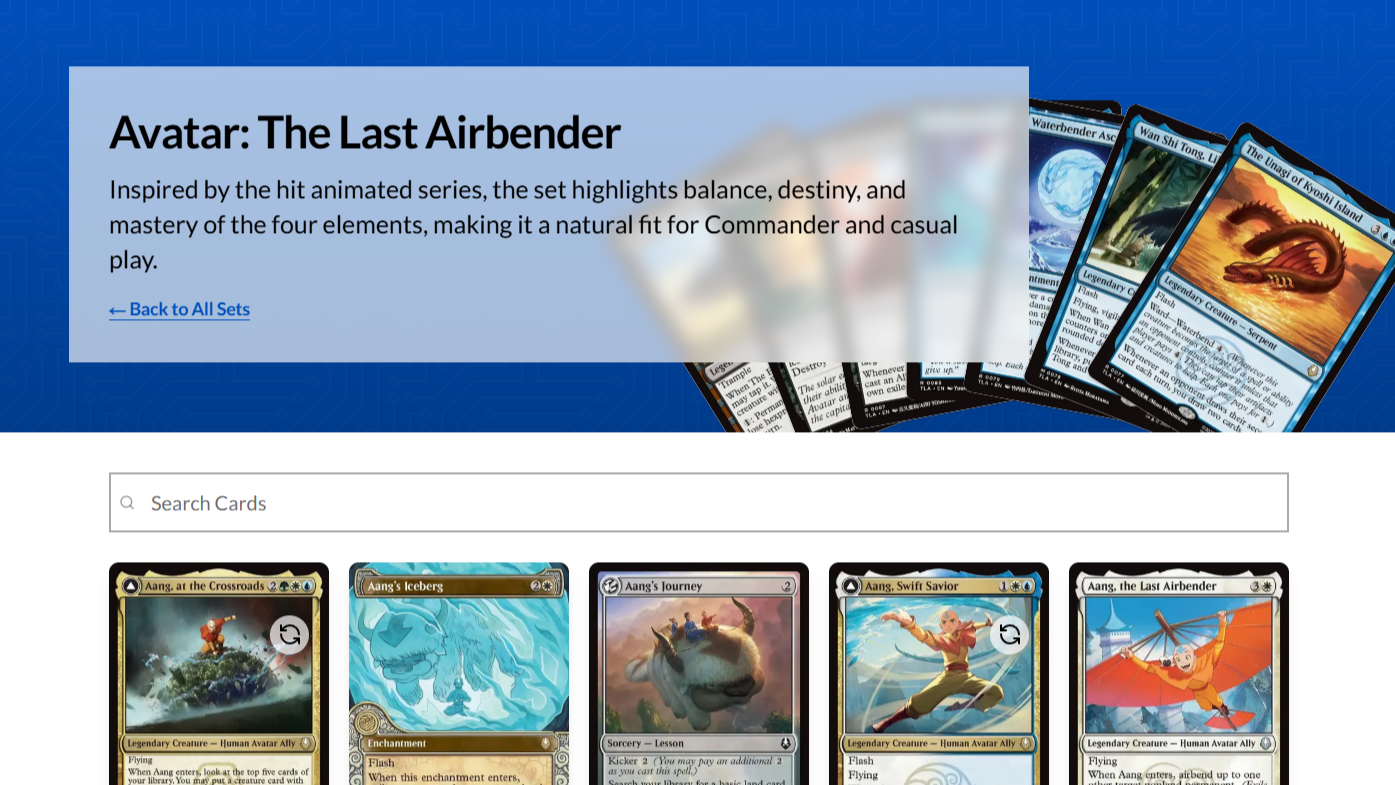
On the MTG Set List page, you’ll see a searchable grid of sets. This is where set browsing becomes practical instead of overwhelming.
If you already know the set name, the search bar is the quickest route. Type a few letters and you can jump right to the release you meant. If you don’t know the exact name (or you only remember the era), you can just scroll. Sets are presented in a way that makes it easy to spot what’s recent and what’s older.
This is also where browsing beats card search for a lot of players. When you search by card name, you’re asking the site to guess which printing you meant. When you browse by set, you’re telling it up front.
Step 2: Open the set and browse the cards inside it
Clicking a set takes you into that set’s page, where you can browse the cards that belong to it.
At this point, your goal usually falls into one of two buckets:
You’re looking for one specific card, but you want the version from this set
You’re grabbing a small group of cards from the same release to keep your deck’s look consistent
Either way, set browsing keeps you “inside the right neighborhood.” You aren’t bouncing between reprints from different years. You aren’t second-guessing if you grabbed the Commander printing when you wanted the main set printing. You’re browsing the actual card pool for that release.
And this is where it shines for players who care about feel. Art, frame treatment, and overall visual cohesion matter more than people admit. If you’re making proxies for a cube, a themed Commander deck, or a deck that’s supposed to match a certain era, set browsing saves a ton of time.
Step 3: Add cards to your order as you browse
The key feature isn’t just “look at sets.” It’s that you can browse sets and add cards to your order on demand, while you’re in the flow.
So the loop is:
Find the set → browse the cards → choose what you need → add it to your order
You don’t have to build a separate list somewhere else first (unless you want to). You can build your order the same way you brew: spot a card, remember you need two copies, add it, keep moving.
This works especially well when you’re building around staples that have been reprinted a bunch. Browsing the set is the easiest way to land on the exact printing you meant, without wading through every other version of the card.
Step 4: Review quantities, confirm versions, and check out
Once you’ve added what you need, you move into the normal order flow: review your cart/order, confirm quantities, and check out.
If you’re coming from a “decklist upload” background, this feels familiar. The difference is just how you got there. Decklist upload is top-down (“here’s my whole list”). Set browsing is bottom-up (“i’m building this order piece by piece”).
Both workflows can get you to the same end result: a clean proxy order that matches the versions you actually want.
What if a set or printing looks missing?
Two quick realities of any MTG database:
Brand-new releases can take a little time to appear everywhere
Some supplemental products are messy, and printings don’t always have clean “set-style” structure
PrintMTG’s set list FAQ basically says the same thing in plain English: the database is updated regularly, and if something isn’t showing yet, check back later.
So if a reader can’t find a set the day it’s announced, that doesn’t automatically mean it won’t be supported. It usually means the data ingestion hasn’t landed yet.
Why set browsing beats card search for “exact printing” people
This is the one line i’d put in bold if this were a landing page:
If you care about the exact art, frame, or version, browsing by set saves time.
Card search is still great when you don’t care which printing you get. But the second you care about which version you’re sleeving up, “set-first” is the cleaner path.
Set browsing also helps newer players learn sets by feel. You start recognizing release names, themes, and visual styles. That turns “i want that version” from a vague memory into a repeatable workflow.
Final takeaway
The PrintMTG MTG Set List is simple: it lets you browse Magic’s releases by set, jump into any era, and add cards to your order while you browse. It’s built for the way players actually think about printings, especially in a world where reprints and alternate treatments are everywhere.
If you’re building proxies that are meant to feel right, set browsing is the easiest way to get there.